Tools
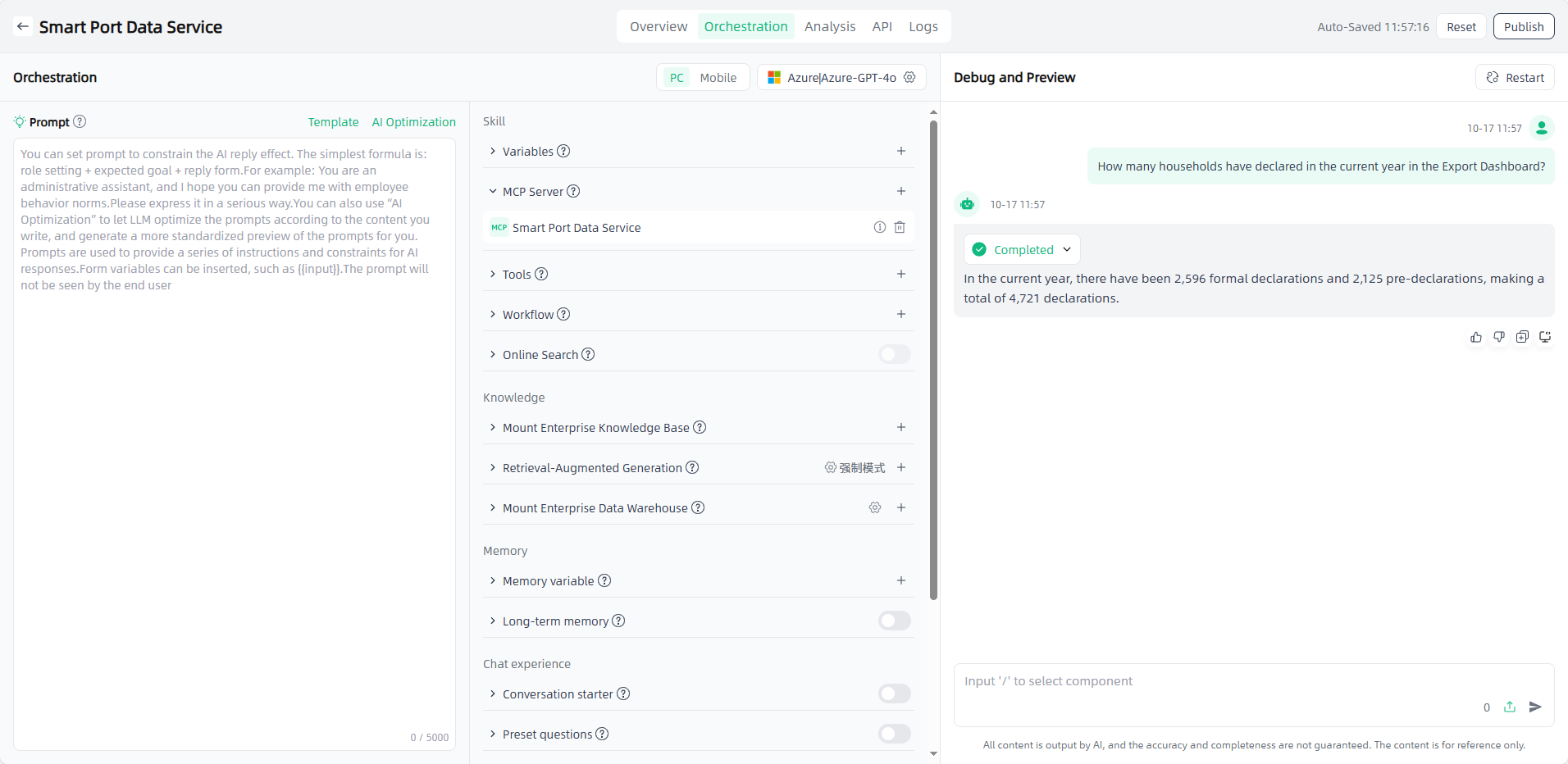
Tools are application building tools for LLM. They are a mechanism provided by Smart Vision for enterprise business applications to quickly link with LLM. They can expand the capabilities of LLM and help users create more powerful AI applications on Smart Vision. When you create an agent application or a writing application, you can add appropriate tools to your application, which can complete complex tasks through task reasoning, step-by-step decomposition, and tool calls.
Component-Tools displays all available external plugins, as well as the tool sets you personally created, along with the number of associated applications. Popular plugins provided by Smart Vision are displayed under External Plugins, and the private tools you personally created are displayed in internal tools.

External Plugins
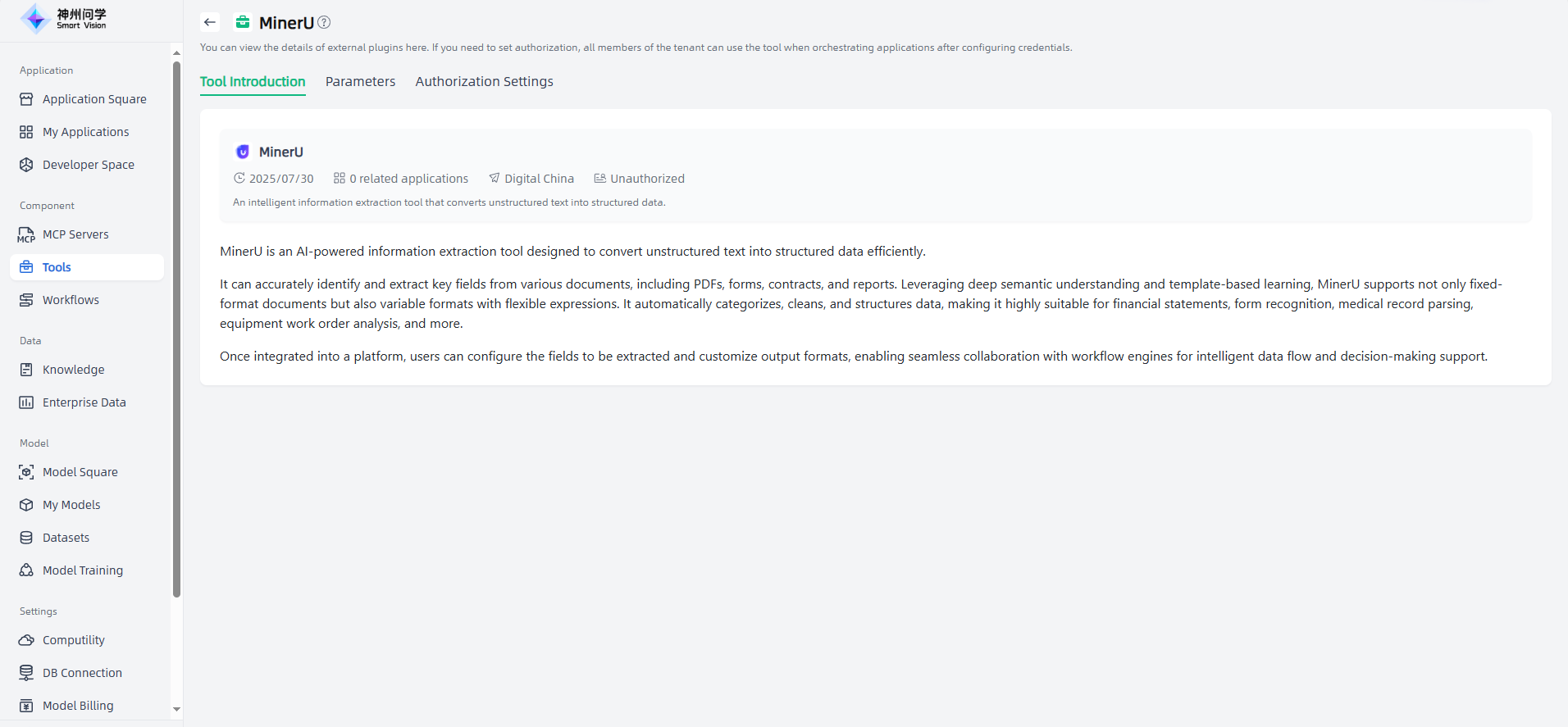
Click the tools in the external plugins to enter the external plugin details page, where you can view the tool's introduction and parameters, and also set up authorization. External plugins are divided into two types: those that do not require authorization and those that require authorization. You can use tools that do not require authorization directly, and tools that require authorization require you to purchase an authorization key and set up authorization before you can use them. After the authorization information is verified, "Authorized" will be displayed.

Internal Tools
A personalized AI application tool can provide private supporting data for various applications, thereby helping developers build and deploy AI solutions more efficiently. In Smart Vision, you can create your own personal tools on demand.
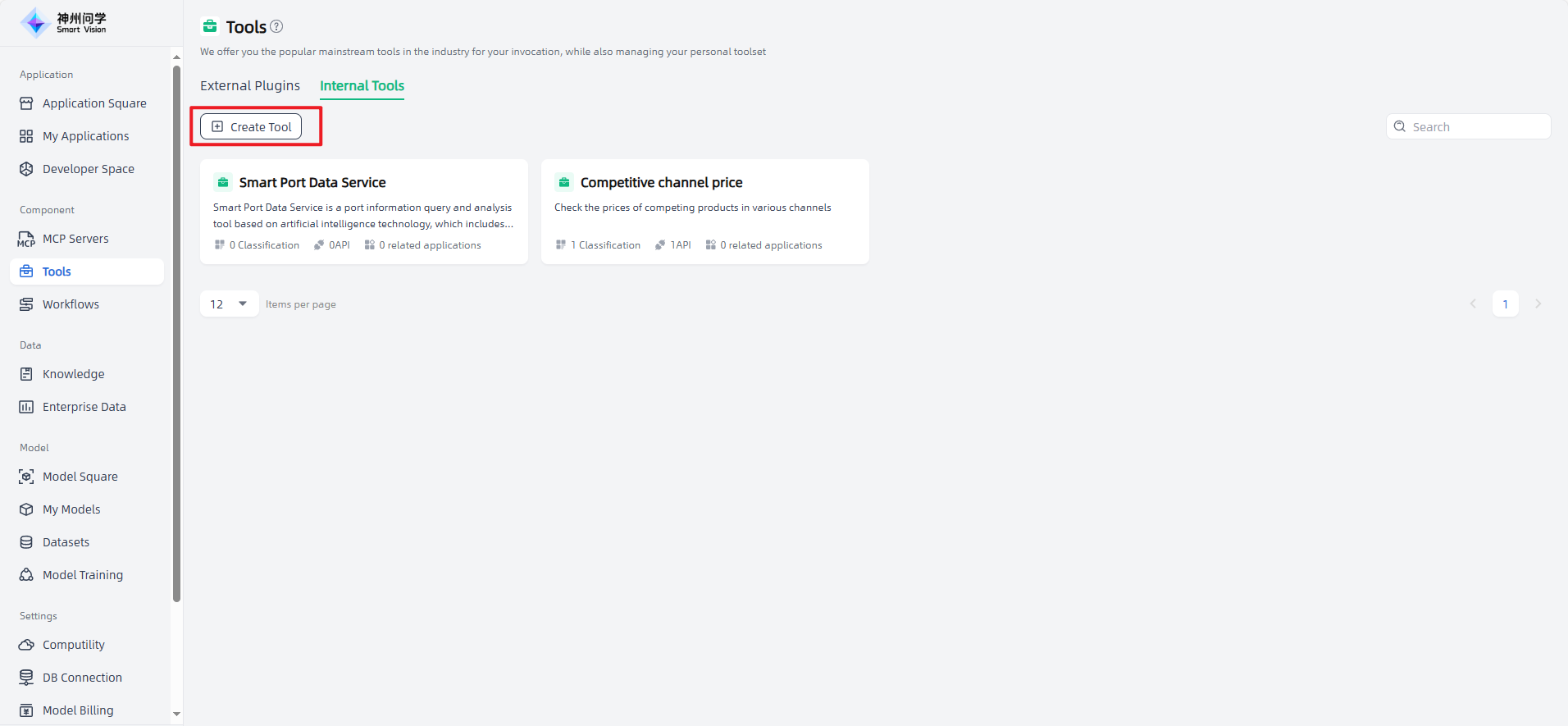
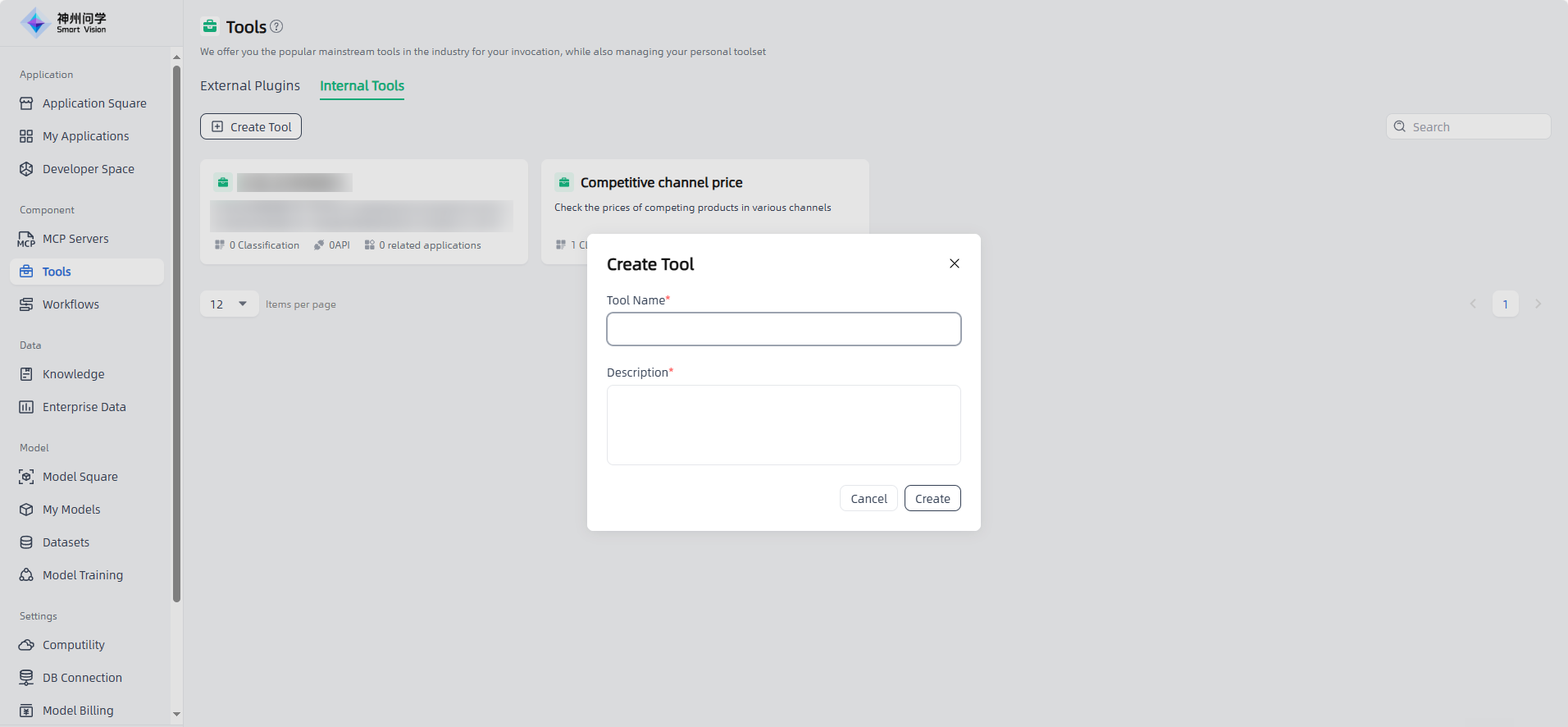
Start: Go to Component-Tools-Internal Tools , click the "Create Tool" button in the upper left corner to enter the "Create AI Application Tool" page.
Fill in the AI application tool introduction: fill in the tool name and description, click the "Create" button to start creating the AI application tool.
Tool Name: Give the tool you want to create a name (it cannot be the same as the name of an existing internal tool in this tenant).
Description: When writing a tool description, it is recommended to include the tool’s core functions and goals, features and advantages, usage scenarios and applicable objects, usage methods, etc., so that users can better understand the tool’s value and usage scenarios.
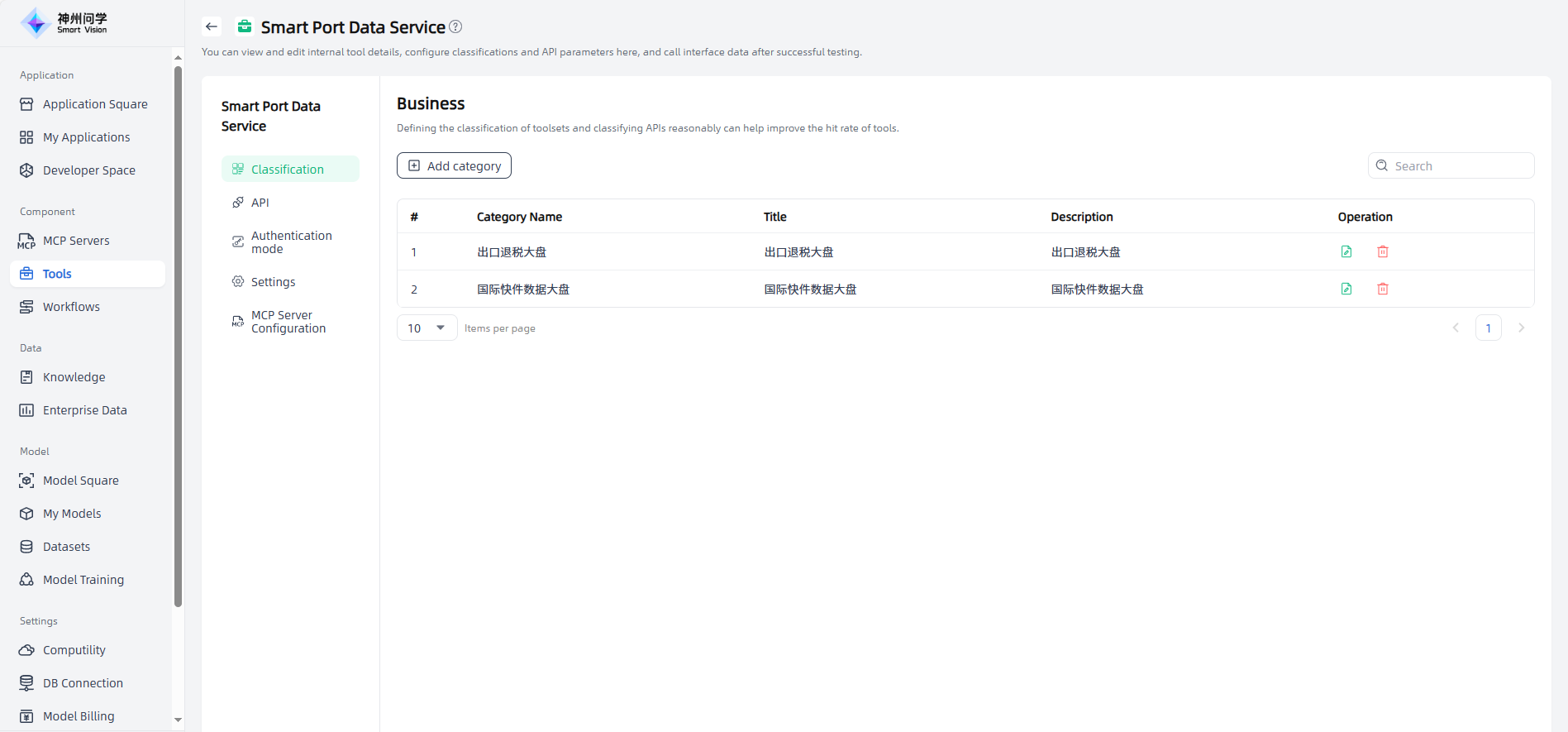
Set internal tool details: After filling in the AI application tool introduction, you will automatically enter the Internal Tool Details page, where you can add category, set API, set authentication methods, and modify tool introduction.
Add category: Manage different files by adding categories, and support modification and deletion.
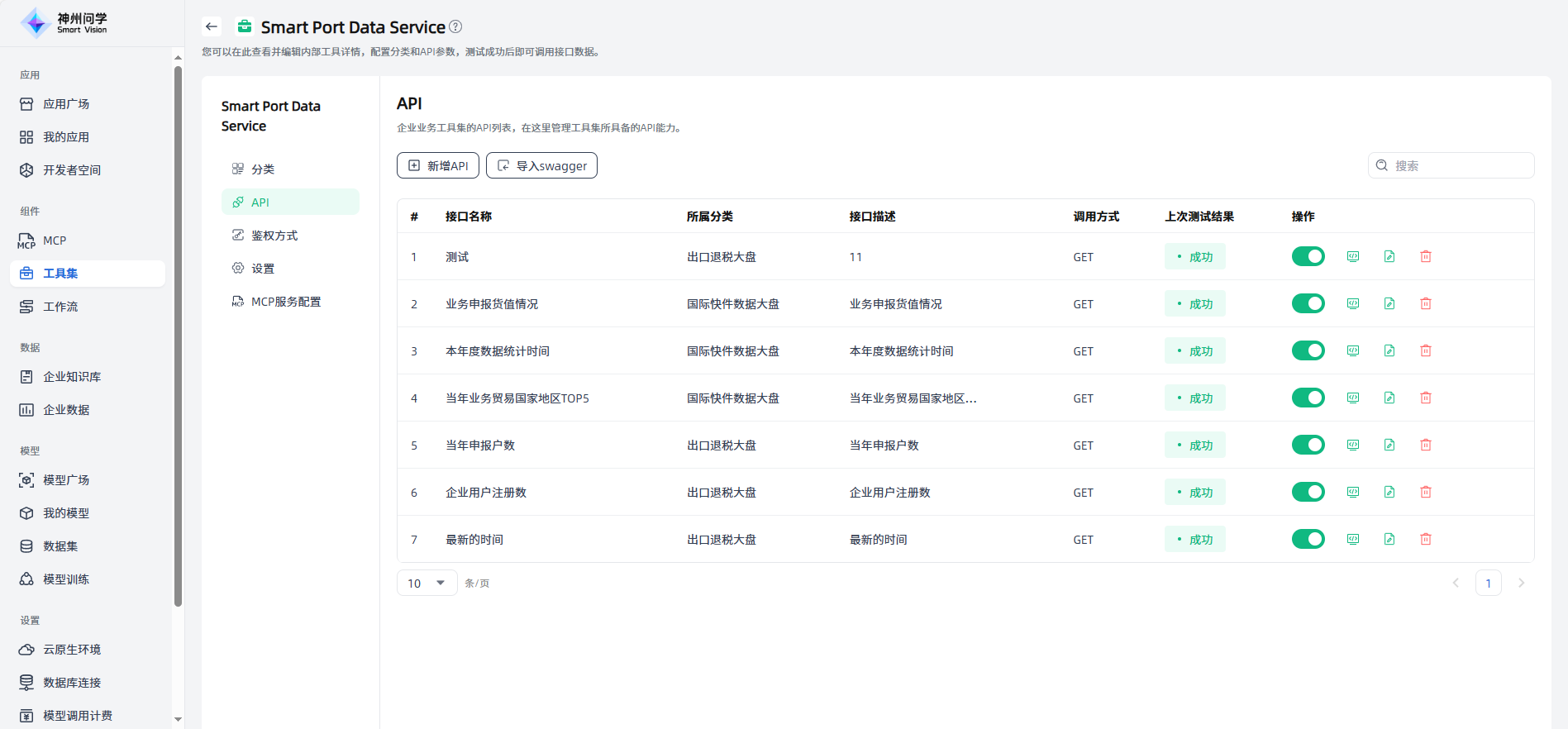
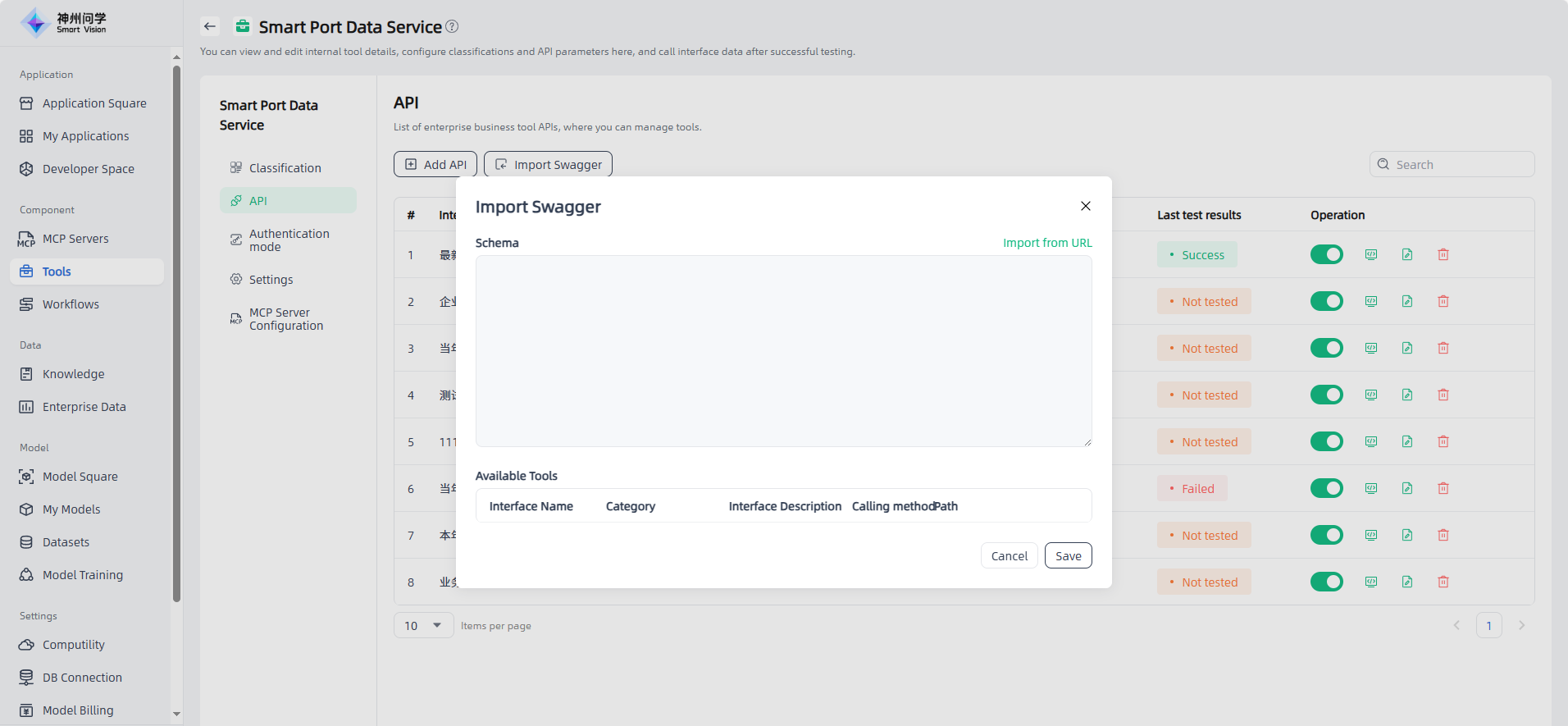
API: You can add API by the "Add API" button or by importing swagger. You can view the API list and edit parameter configurations. After the test is successful, user can call the interface data.
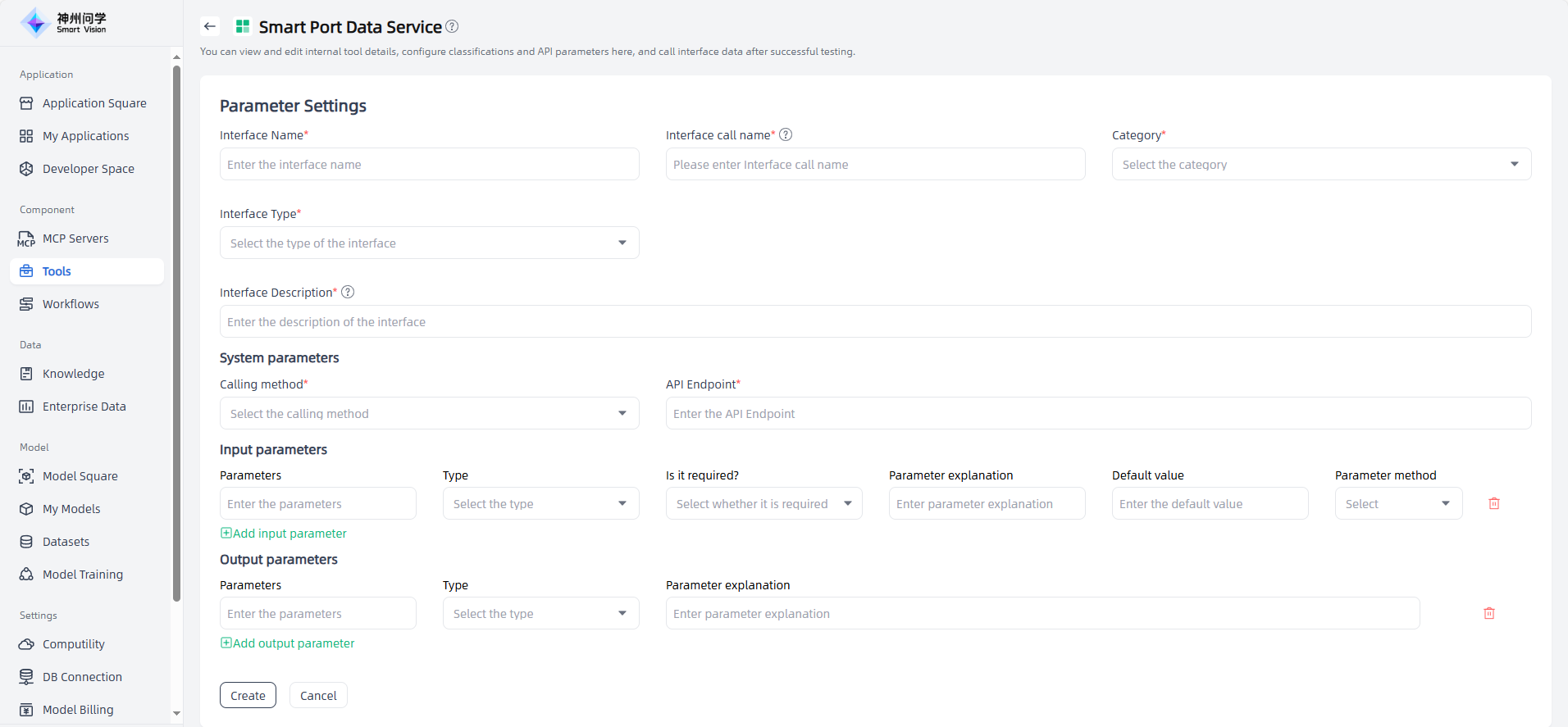
Add API:
Import Swagger:
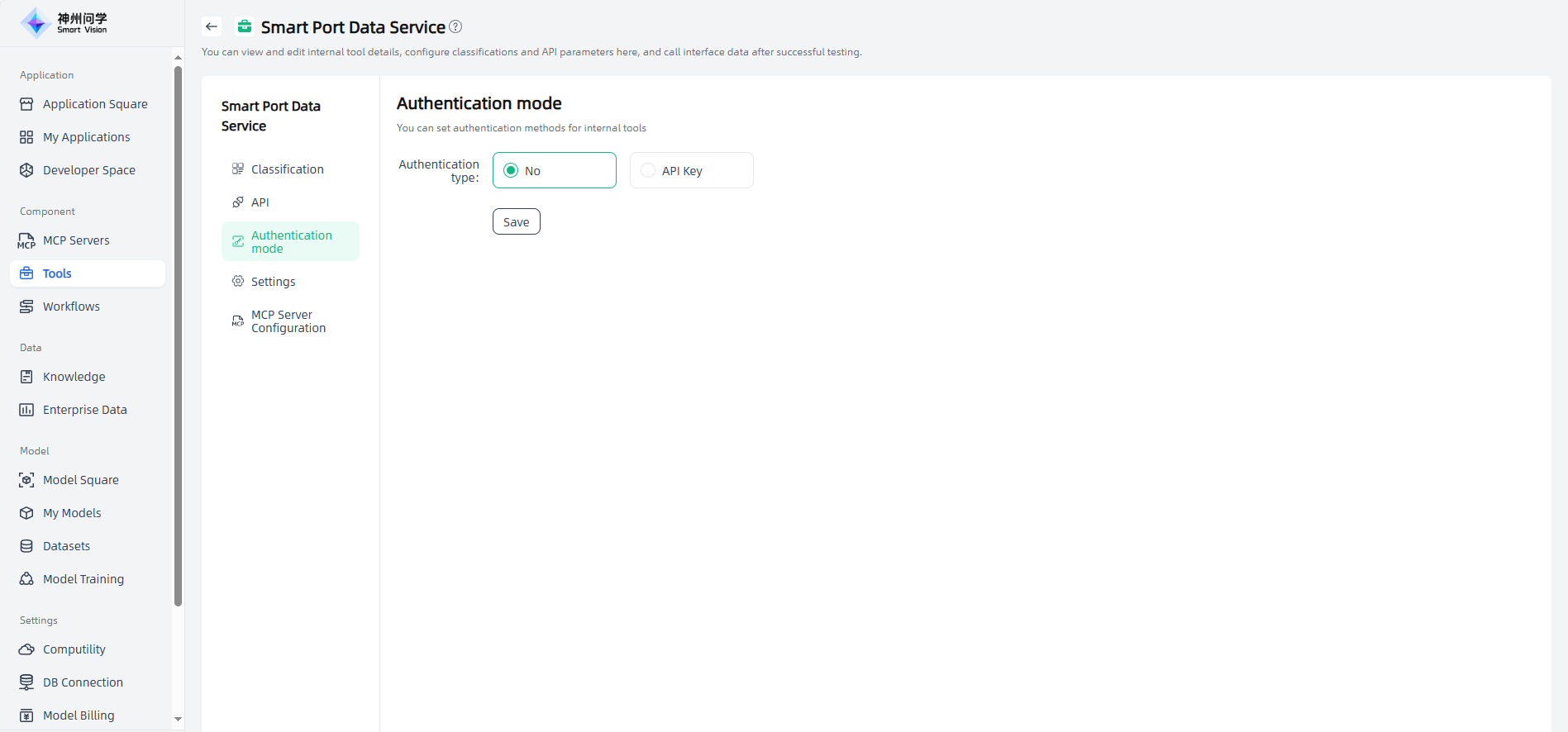
Authentication mode: You can set authentication methods for internal tools.
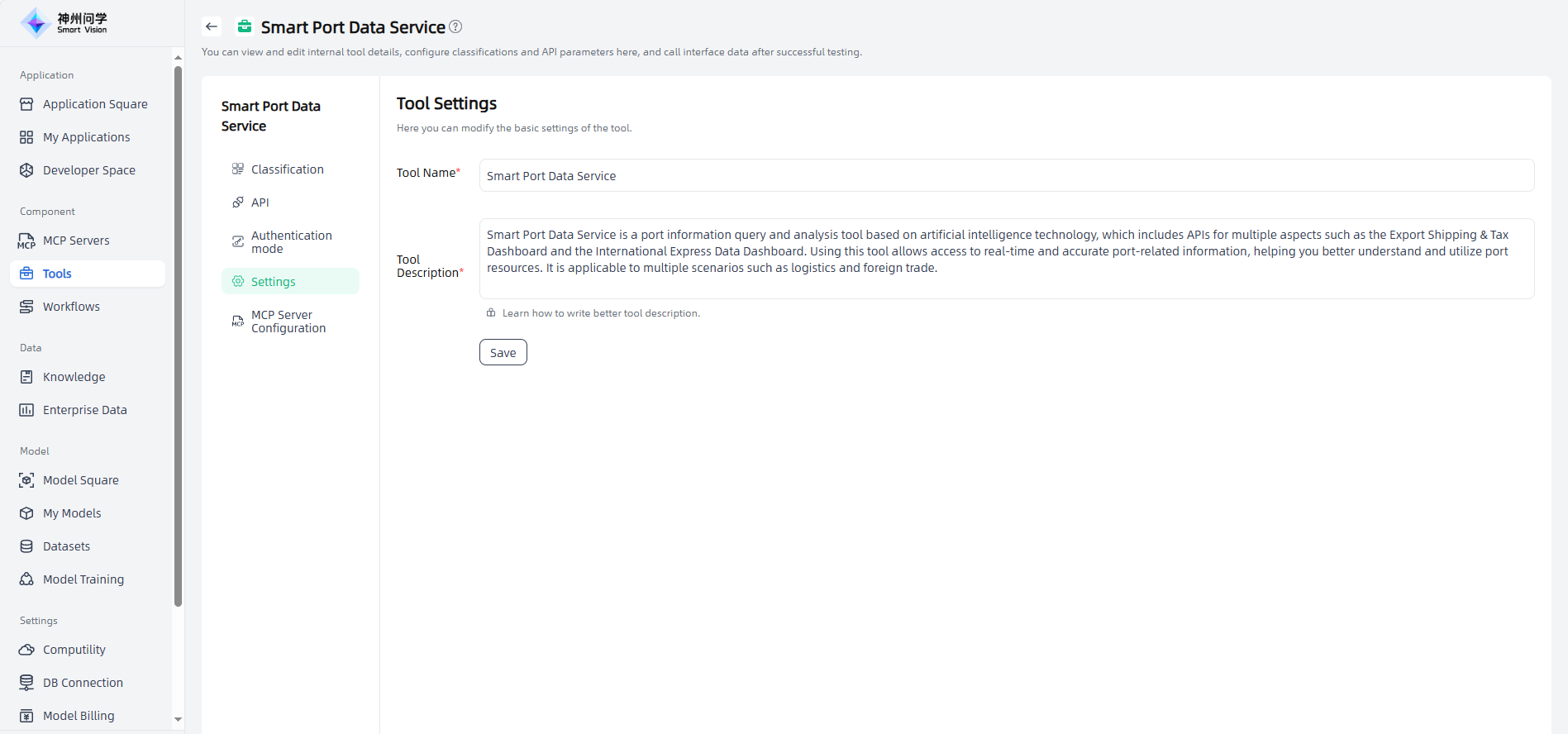
Settings: You can modify the basic settings of the tool.
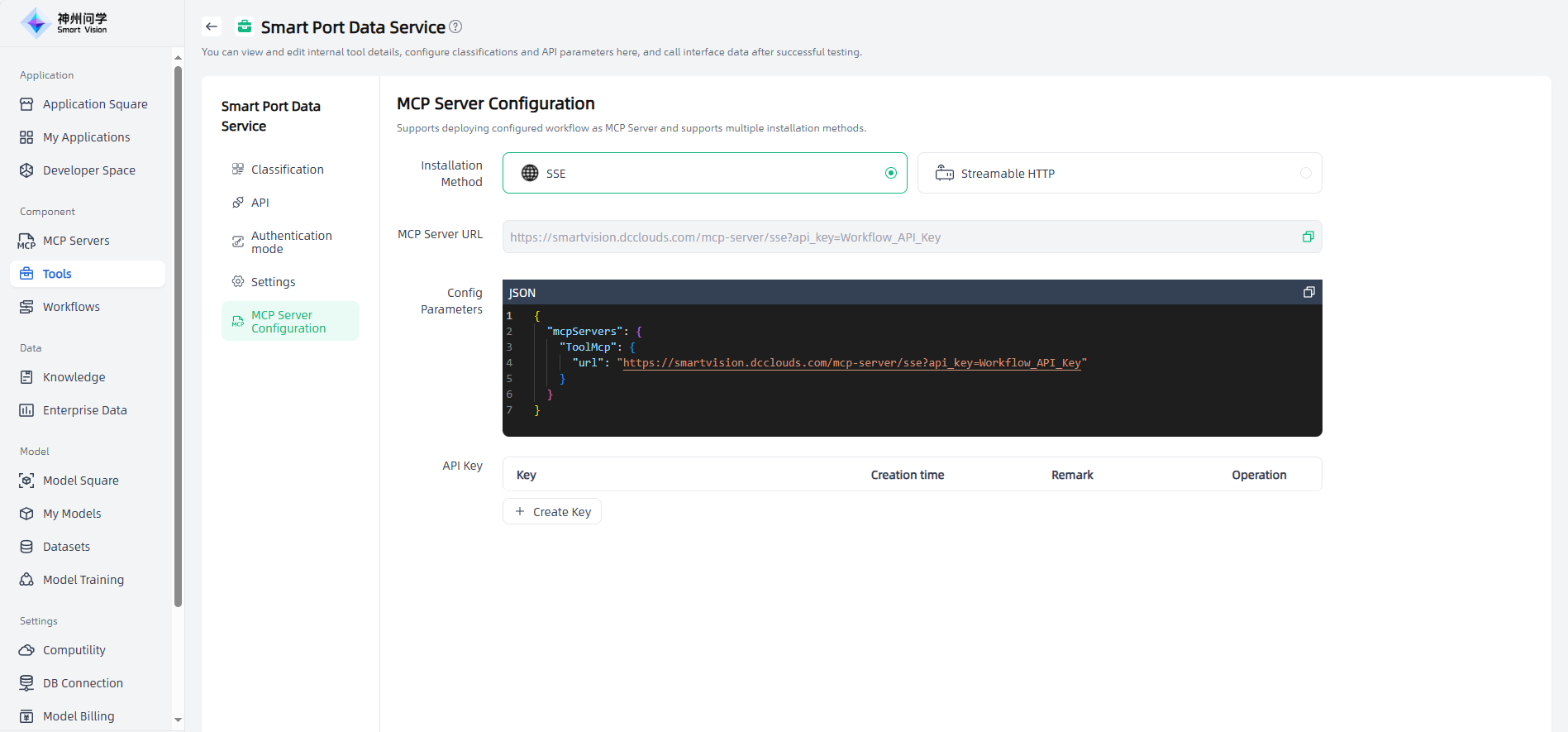
MCP server Configuration: After an internal tool is created and debugged, click “MCP server Configuration” to obtain the parameters needed to configure this internal tool as an MCP server. By copying the internal tool’s MCP servers configuration parameters and creating a key, users can set up this internal tool as an MCP servers under Component -MCP Servers→ Custom MCP servers, making it ready for deployment and use.